Video to MP3 - Video to Audio
- 4.8
- Rating
- 50.00M
- Installs
- Free
- Price

 Analysis by App-foxy
When I need to pull a song, speech, or sound effect out of a video, I prefer a focused tool over a full editing suite. Video to MP3 - Video to Audio takes that narrow job seriously: it turns video files into audio and trims clips without surrounding the process with a large timeline or a confusing collection of professional controls. After using it, my view is simple: this is a practical utility for quick audio extraction, not a replacement for a complete mobile editor.
Before choosing it, I’d ask one simple question: do I need the sound from a video, or do I need to edit the video and its soundtrack together? This app makes the most sense for the first job. If the answer is the second, a broader editing app will be a better starting point, even if it takes more taps to reach an export.
What the app does well in everyday use
I find this app most useful when the goal is clear before I open it: keep the sound, leave the video behind. That focus makes it easier to judge whether the short workflow suits a one-off clip or a repeated habit, and it also highlights when a broader editor would save effort. A sensible first test is a replaceable recording, so I can check the trim and output before trusting it with something important.
You May Also Like

 Blood Strike: 2.5 Anniversary
Blood Strike’s Loadouts Turn Every Drop Into a Tactical Gamble
A close look at Blood Strike’s custom loadouts: how fast access to signature weapons reshapes its battle royale rhythm, rewards preparation, and narrows the gap between fights.

 Pandora - Music & Podcasts
Pandora’s Music Is Easy to Start, but Harder to Recover
Pandora’s strength is its low-effort path from a seed to a station. Its weak spot is how much confidence it asks you to place in connection, setup, and quiet recovery.

 8 Ball Pool
 Is Built on Rivalries, Rematches, and Routine
A close look at the rivalries, rematches, shared routines, and unanswered safety questions that turn a quick pool match into a persistent mobile community.

 Samsung Music
’s Quiet Strength Is Playing What You Already Own
Its reach comes less from spectacle than from dependable access to a personal library. That simplicity is both the app’s strongest retention engine and its ceiling.

 AccuWeather: Weather Radar
AccuWeather Review: A Quick, Clear Forecast for Everyday Decisions
For everyday plans, the best forecast is the one you can understand quickly. AccuWeather makes rain timing, radar, and local conditions easy to act on, with a few trade-offs.

 Hill Climb Racing
Why Hill Climb Racing Still Turns Crashes Into One More Run
A tiny car, a bumpy hill and one more upgrade: Hill Climb Racing keeps resurfacing because its simple chaos makes every near-miss feel personal.
More From Our News Desk



A direct workflow for turning video into audio
The strongest part of my experience was the focused workflow. Instead of importing a clip into a broad editor and searching through export menus, I could approach the task from the result I wanted: an audio file. That difference matters when the video is only a container for a voice recording, a musical passage, a lecture segment, or a memorable sound.
The trimming step is particularly useful before conversion. If I only need a short section, removing the unwanted beginning and ending first avoids creating a longer audio file that I have to clean up afterward. It also makes the result easier to share or store. For a quick job on a phone, that sequence feels more sensible than opening a timeline-based editor designed for visual storytelling.
A realistic example is a family recording where someone says a phrase worth saving as audio. I can select the video, cut away the unrelated material, and create a compact audio version rather than keeping the entire visual file. The same approach works for a short interview excerpt or a spoken reminder recorded inside a video. The app is most convincing when the conversion is a small, clearly defined task.
Useful when storage and sharing matter
Video files are often inconvenient when I only want their sound. They take up more space, are slower to send, and force the recipient to open a visual file for an audio-only moment. Converting the material gives me a cleaner file for listening, attaching, or organizing. That does not make the source recording better, but it removes unnecessary video from the final result.
This is also helpful when I am preparing material for a personal playlist or collecting spoken clips. I can work with the audio directly instead of repeatedly opening the original video. The value is not in elaborate production; it is in reducing friction between the file I have and the format I actually need.
One small workflow choice can make a difference here: I’d decide where the audio is going before converting. A clip intended for private listening has different needs from one that will be sent to someone else or added to a larger project. Keeping the original video until I’ve checked the extracted result is a sensible habit; it gives me a fallback if I trim too tightly or discover that the chosen segment starts too late.
Simple enough for occasional users
I think the app is approachable for people who do not edit media regularly. Someone who understands basic file selection and trimming can usually grasp the purpose immediately. There is no need to learn tracks, layers, transitions, or a complex export pipeline just to separate sound from an existing clip.
That simplicity is a real strength, but it comes with a trade-off. Users who already work comfortably with a full editor may find the dedicated interface less flexible than the tools they already have. The app earns its place by being easier for a specific job, not by offering every possible editing option.
For example, I’d consider it for a student who has a video recording and wants to replay a short spoken explanation while reviewing notes. The useful part is not simply having audio; it is being able to isolate the relevant passage instead of scrubbing through the video each time. If the recording is long or the exact point is hard to identify, I’d first locate and preview the moment in a player, then use the converter for the deliberate cut.
Three practical techniques that improve the result
My first tip is to trim conservatively at the start. When a spoken word begins close to the edge of a clip, cutting too tightly can remove the first syllable or create an abrupt entrance. I prefer leaving a small amount of breathing room, listening to the converted result, and trimming again only if necessary.
My second tip is to use a descriptive file name immediately after conversion. A phone can quickly fill with similarly named clips, especially when several versions come from the same source video. Naming the result by subject and occasion makes it much easier to find later than relying on a generic export label.
My third tip is to treat extraction and editing as separate decisions. If the audio needs serious cleanup, volume balancing, fades, or detailed arrangement, I would extract the useful section here first and then move it to a dedicated audio editor. That two-step workflow is often faster than forcing a small converter to perform a job it was not designed to handle.
I’d also listen to the beginning and ending after conversion rather than assuming that a cut which looked right is clean. A breath, room tone, or the tail of a sentence can make a clip feel more natural than an edit that starts and stops abruptly. For a sound effect or a musical phrase, leaving a little context can be more useful than trimming to the apparent peak; the surrounding moment may be what makes the sound understandable.
Where it fits beside ordinary alternatives
On many phones, the built-in gallery can trim video, but it usually keeps the result as video. That is fine when I want a shorter visual clip, yet it does not solve the audio-only problem. A general video editor may offer more control, but it also adds menus and editing concepts that are unnecessary for a simple conversion.
Desktop converters can be more powerful for batches, detailed format control, or large source files. They are the better choice when I need a repeatable production workflow or want to manage many recordings at once. Video to MP3 - Video to Audio makes more sense when the source is already on my phone and I want an immediate result without moving files to another device.
Online conversion services can also appear convenient, but a phone-based app feels more natural for local recordings and quick personal tasks. I can stay in the same device workflow instead of uploading a file through a browser. For sensitive recordings, I would still read the app’s current permission and privacy information before using it, and I would avoid converting material I do not have the right to reproduce.
These options solve different parts of the same problem. A gallery editor is the straightforward choice when the recipient still needs the image. A full video editor is better when sound is one layer in a larger visual project. A dedicated audio editor becomes useful after extraction if I need to shape or repair the sound. This app sits between those choices: it is for getting an audio clip out of a video, not for replacing every tool in a media workflow.
The limitation that matters most
The app’s narrow purpose is also its main weakness. It is not the tool I would choose for mixing several audio sources, designing a soundtrack, correcting a noisy recording, or building a finished video with captions and transitions. If I need creative control over the entire project, I would start with a full video editor or an audio workstation instead.
There is another practical limitation in the conversion idea itself: extracting audio cannot improve the original recording. If the source video has background noise, low volume, distortion, or muffled speech, the resulting file carries those problems with it. The app changes the container and lets me select the section; it does not magically restore missing detail.
I also would not assume that every conversion is equally useful for every destination. Before sharing or importing the result elsewhere, I would check what audio format that destination accepts and whether the converted file behaves as expected. For casual listening this may not matter, but compatibility becomes important when the file is going into another editing or publishing workflow.
Another trade-off is the extra file to manage. Extraction can make listening and sharing more convenient, but it also creates a separate copy that may be easy to forget about later. If I only need the sound once, I’d avoid making several near-identical versions. If I expect to reuse it, I’d give the file a clear name and keep it with related material rather than letting it disappear among downloads.
Who should use it
I would recommend this app to students saving a short spoken section from a recorded class, families extracting audio from personal videos, and casual creators who need a music or voice excerpt without opening a full editor. It is also a good fit for anyone who regularly receives video messages but prefers listening to the important part as audio.
It is less suitable for professional editors, musicians who need detailed sound shaping, or users who convert large collections of files. Those people will likely benefit more from software built around batch processing, advanced format choices, or precise audio controls. The same applies to anyone looking for a complete social-video editor: this app solves one stage of that process, not the whole project.
I’d also skip it if I need a dependable production pipeline with consistent settings across many source files, or if I cannot afford to inspect the output before using it elsewhere. A specialist converter can save time for an occasional, clearly bounded task, but convenience is not the same as control. For work where every cut, level, and format choice matters, I would rather use an editor that exposes those decisions.
What the wider user response suggests
The app has an average rating of 4.8 from around 700 thousand ratings, with roughly 9.3 thousand written reviews and over 50 million installs. Those figures suggest that the straightforward conversion idea meets a common need, although popularity should not replace checking whether the workflow matches my own files and habits.
The free starting point lowers the barrier to trying it, while the optional purchases are worth considering if I expect to use it frequently. For a one-off conversion, I would begin with the free experience and judge whether it handles my normal workflow comfortably before paying for anything. That is especially sensible because the app’s value depends more on convenience than on a long list of advanced production features.
In practical terms, I’d first try it with an ordinary, nonessential clip and check the complete path: finding the source, selecting the passage, locating the output, and playing it in the app I actually plan to use. That quick test answers the questions that matter to me—whether the controls feel clear, whether the exported clip suits my purpose, and whether the free option is enough for my habits—without committing an important recording to an unfamiliar workflow.
My final recommendation
After using Video to MP3 - Video to Audio, I see it as a useful specialist rather than an all-purpose editor. Its best quality is the clear path from video file to trimmed audio file, with fewer distractions than a conventional editing suite. That makes it a sensible choice for quick personal conversions, short voice clips, and situations where keeping the video adds no value.
I would skip it if my main goal were audio restoration, multitrack work, batch conversion, or polished video production. For those jobs, a more advanced alternative is worth the extra complexity. But if I simply have a video on my phone and want the sound from one manageable section, this app gives me a practical place to start.
In my opinion, the right expectation is the key to enjoying it: choose it for speed and focused extraction, not for studio-level editing. It is free, rated for Everyone, and has been available since February 11, 2018, which makes it an established option for this particular mobile task. For the everyday user who wants a clean audio copy without learning a large editor, I would recommend giving it a try.
FAQs for Video to MP3 - Video to Audio
01What formats does Video to MP3 support for conversion?
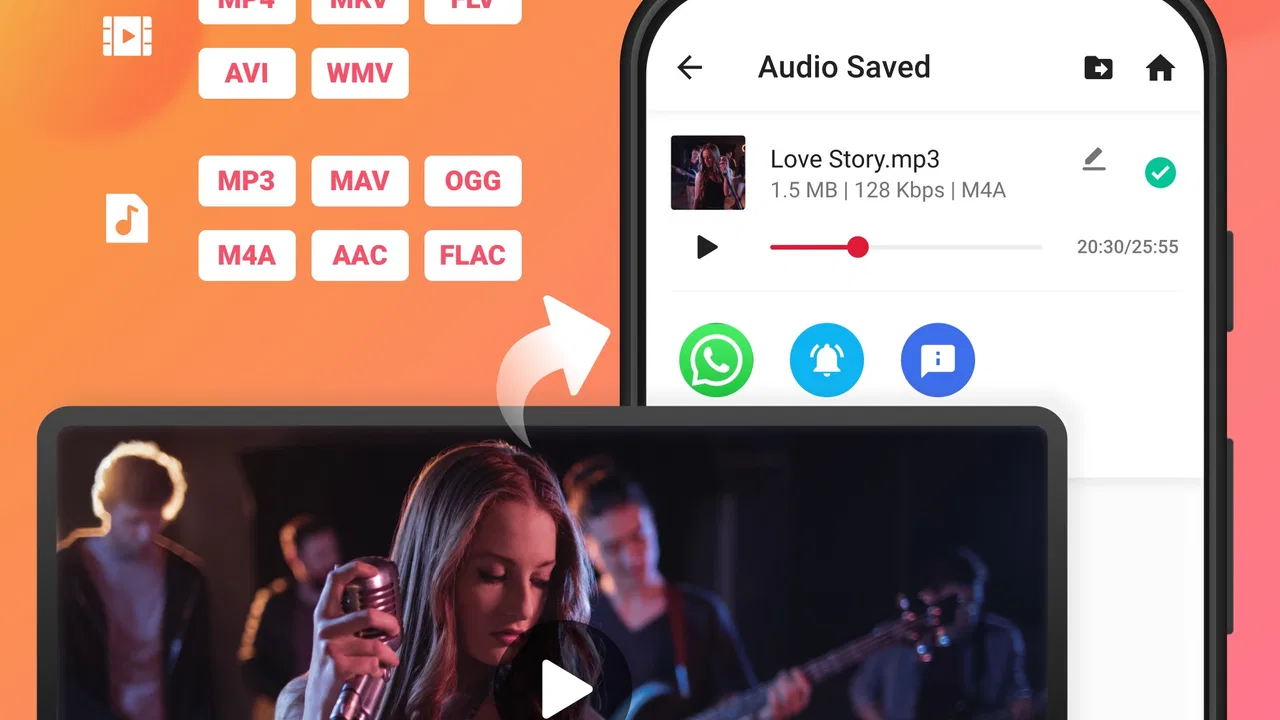
Video to MP3 supports a wide range of video formats including MP4, AVI, MKV, and more, allowing users to convert these into popular audio formats like MP3, AAC, and WAV. This flexibility ensures that users can easily extract audio from any type of video file they have.
02Is Video to MP3 free to use, or does it require a subscription?
Video to MP3 offers a free version with basic features, but for advanced options like batch conversion and high-quality output, a subscription or one-time purchase may be required. Users should check the app store listing for detailed pricing information and any available in-app purchases.
03How user-friendly is the Video to MP3 interface?
The app is designed with simplicity in mind, featuring an intuitive interface that guides users through the conversion process. Even those with limited technical skills can easily navigate the app, select files, and perform conversions with just a few taps. User reviews often praise its ease of use.
04Are there any limitations on file size or length for conversion?
While Video to MP3 efficiently handles a variety of file sizes, the free version may impose restrictions on the maximum file size or length for conversion. Users who need to convert larger files might consider upgrading to a premium version, which typically lifts these limitations.
05Does Video to MP3 retain the quality of the original audio?
Video to MP3 is designed to preserve the original audio quality during conversion. However, the quality might also depend on the settings chosen by the user and the original file's quality. The app provides options for different bitrates to balance between file size and audio quality.
Pros
- Easy-to-use interface for quick conversions.
- Supports multiple video formats.
- Batch conversion saves time.
- High-quality audio extraction.
- Lightweight
- doesn't drain resources.
Cons
- Contains ads that can be intrusive.
- Limited editing features.
- No cloud integration for storage.
- Occasional crashes during conversion.
- Free version has limited features.

Video to MP3 - Video to Audio
Gallery